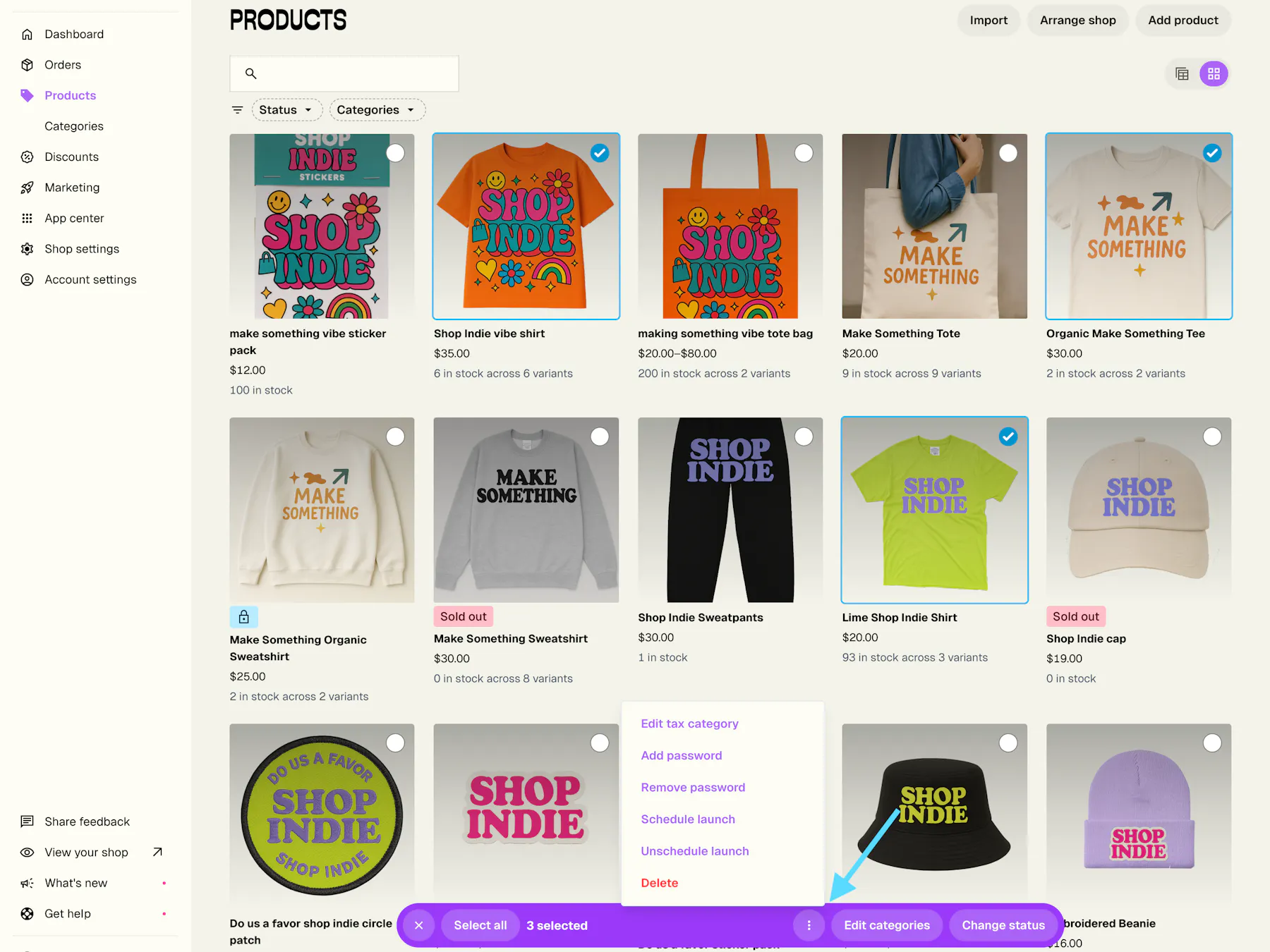
Bulk editing lets you quickly and easily modify multiple products at once — saving you time and effort managing your shop.
You can update the following attributes in bulk from the Bulk edit action menu:
- Status (Active, Hidden, Sold Out)
- Categories
- Tax category
- Add password (for private access | Diamond sellers only)
- Schedule/Unschedule launch (Diamond sellers only)
- Remove password (Diamond sellers only)
- Delete
To select a whole range of products at once, be sure you're in List view, then click the top checkbox next to the “NAME” column to quickly select all products currently visible in your list.
How to bulk edit products
- Log in to your admin at app.bigcartel.com.
- Go to the Products section.
- Select the products you want to edit: In List view, use the checkboxes next to each product name and in Grid view, use the circle buttons on each product.
- Once products are selected, click Bulk edit in the action bar that appears at the bottom of the Products page.
- Choose the bulk edit option you want (e.g. Status, Categories, Tax category, etc.).
- Make your changes and click Save to apply them.
Manage Products using the table view

Heads up! This feature is available to Platinum and Diamond sellers. Upgrade to get this and many more features that will help you easily sell and manage more products.
The product table provides a comprehensive way to easily manage and edit your products and variants. This view allows for efficient sorting, filtering, and editing of product information without needing to go into each individual product page.
Why you should use it
- Better product management: Easily view all products and their details in a single table. Sort and filter all of your products by any of these attributes (such as price or status).
- Easier bulk editing: Save time by updating multiple pieces of product information without navigating to individual product pages.
- Streamlined inventory updates: Quickly update stock levels, prices, and statuses, making inventory management more efficient.
When you should use it
The table view and bulk editing features are designed to streamline various aspects of product management. Use the table view to:
- Adjust prices for variants: Change the price of all Large variants across your products in one action.
- Update product status: Move products from Hidden to Active status when they are ready to sell.
- Managing stock levels: Quickly update stock levels for multiple products, ensuring accurate inventory management.
- Rename multiple products: Update product names in bulk to maintain a consistent style or reflect new branding.
How to use the table view

Step 1: Access the table view
- Navigate to the Products section in your Big Cartel admin. Select the
- Table view option.
Step 2: Sort, filter, and search products
- Sort: Click on column headers to sort products by name, price, status, stock, or categories.
- Filter: Use the filter options to display products by status.
- Search: Perform a keyword search by typing the product name.
Step 3: Directly edit product information
- Edit single product: Click on a product attribute (e.g., price, name) to make changes directly in the table.
- Bulk edit: Select multiple products and use the bulk edit options to change their status, categories, or other attributes.
Step 4: Autosave
- Autosave: Your changes will be automatically saved when you click out of a cell. There’s no need to manually save your progress; the system will ensure your updates are captured in real time.