After you’ve put in the work—added your products, designed your shop, and prepared your brand. Now it’s time to launch your store and make it visible to the world. Turning off maintenance mode is the final step that makes your shop publicly accessible and allows customers to begin placing orders.
Below is a quick checklist to help ensure everything is ready before you launch.
Before You Launch: Quick Setup Checklist
Before making your store live, we recommend confirming these key areas are set up that are also outlines during onboarding.
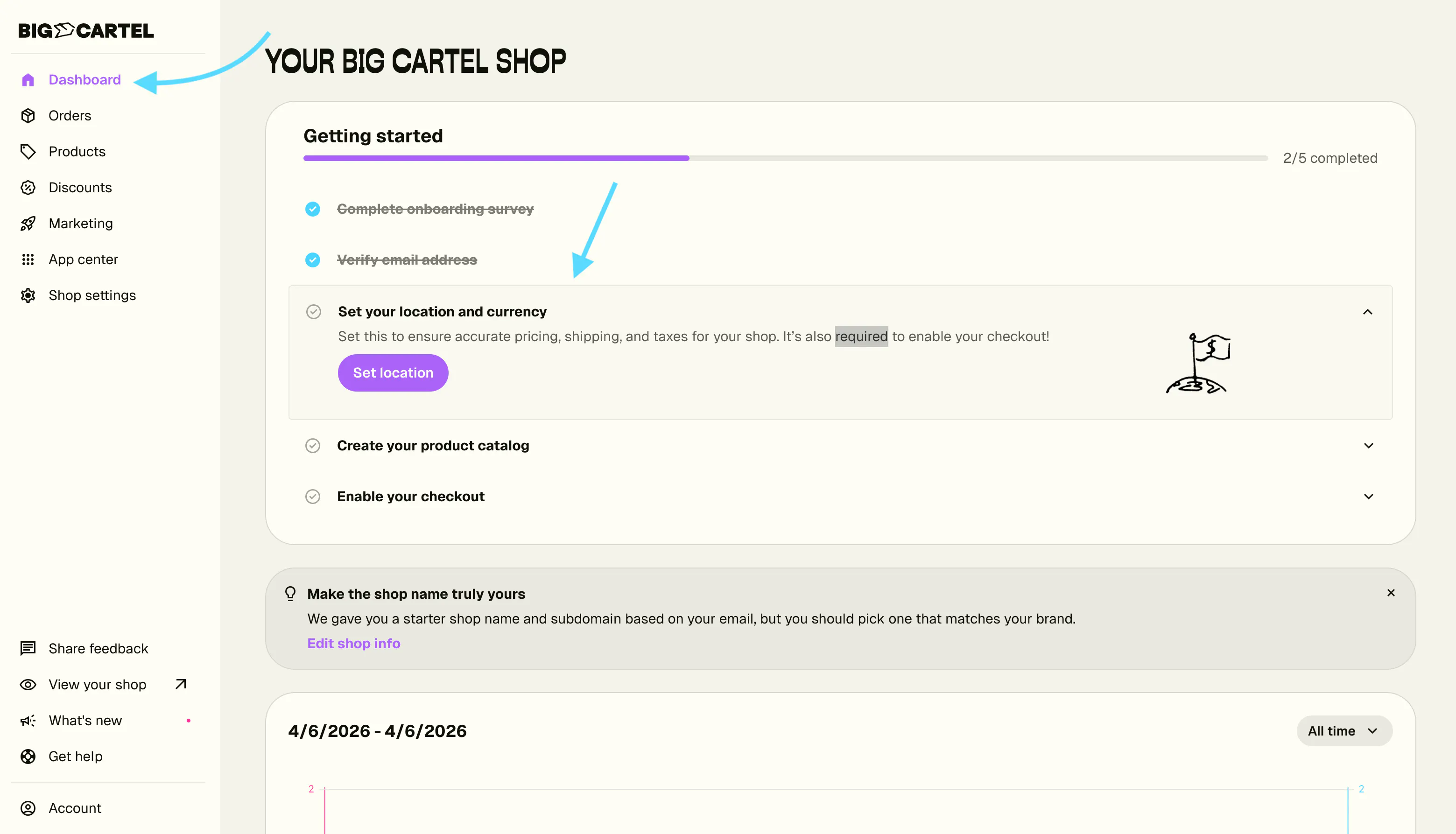
1. Confirm Your Shop Name and Subdomain
Your shop name and subdomain determine your shop’s URL, so it's important to make sure they reflect your brand before launching.
For example:
yourbrand.bigcartel.com
To update this:
- Go to Settings
- In the Shop domain section, update your subdomain using the first field, then click Save changes.
- Next, scroll down to the Shop Info section.
- Update your Shop name if needed, then click Save changes.
Tip:
Once your shop is live and you begin sharing your link with customers, changing your subdomain can cause old links to stop working. It's best to finalize this before launching.
2. Add at Least One Product
Customers need something to purchase once your shop is live.
Make sure your product includes:
- A title and description
- Product images
- A price
- Any variants or options (sizes, colors, etc.)
You can manage products from the Products page in your admin.
3. Set Up Checkout and Payments
To accept orders, you’ll need a payment processor connected to your shop.
You can accept payments using:
- Stripe
- PayPal
Go to Shop Settings → Payments to connect a processor.
Heads up:
If you’re using Stripe, your shop must be live for Stripe to fully access and verify your storefront. This means turning off maintenance mode is required for Stripe to complete certain checks and allow you to receive payments.
4. Add Shipping Rates
If you’re selling physical products, be sure to add your shipping rates before launching.
Without shipping rates, customers may not be able to complete checkout.
You can add shipping from:
Shop Settings → Shipping
Be sure to:
- Add rates for your primary shipping region
- Assign products to the correct shipping profiles if you’re using multiple profiles
This ensures customers see accurate shipping costs at checkout.
5. Review Your Shop Location and Policies
Before launching, it’s also helpful to confirm:
- Your shop location is set correctly
- Any policy information (returns, shipping timelines, etc.) is added
You can update this in Settings or through your design customization area depending on your theme.
Launching Your Shop
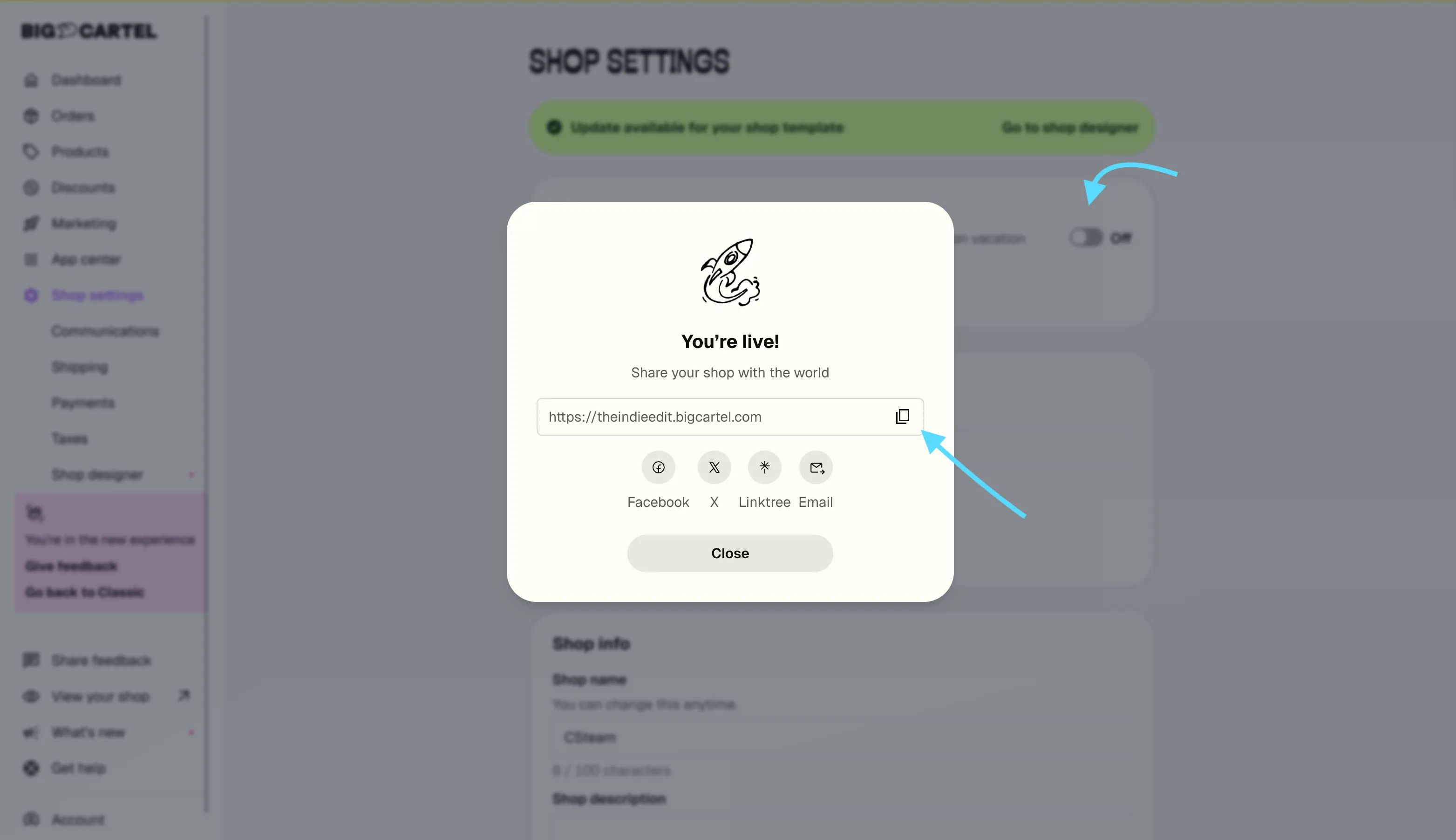
When everything looks ready, you can launch your store by turning off maintenance mode.
- Go to Shop Settings
- Find the Maintenance Mode setting
- Turn Maintenance Mode off
Once this is disabled, your shop will be publicly accessible, and customers can begin visiting and placing orders.
What Happens After You Launch?
Launching your shop is a big milestone. It means you’ve officially committed to the process of running your own online store.
From here, your focus shifts to growing and sharing your brand.
Some great next steps include:
- Sharing your shop on social media
- Building an email list so you can notify customers about new releases
- Posting regularly to keep people engaged with your brand
- Continuing to add products and refine your shop
Running a shop means wearing many hats—creator, marketer, and business owner—but it’s also one of the most rewarding parts of building something that’s truly yours.
Stay Committed to Your Brand
Every successful shop starts with a launch just like this. Growth takes time, consistency, and belief in what you're building.
If you believe in your brand, stay committed to the process. Keep showing up, keep improving, and keep sharing what you create with the world.
Your shop is live. Now the real journey begins.