
If you signed up before December 15, 2025 and were using Shipping Profiles, you’ll notice some updates in the latest version. Here’s what’s changed:
Before:
You could create one storewide set of shipping rates, plus separate rates for items that needed to ship individually.
Now:
You can still set storewide rates and separate rates — but shipping rates can now automatically merge at checkout across multiple shipping profiles, as long as those profiles use the same rate categories (for example: Standard, Express, or Priority).
Shipping profiles let you control how shipping is calculated at checkout—whether everything ships the same way, or different products ship differently.
You can use shipping profiles in two ways:
- Create single profiles to apply a single, storewide set of shipping rates
- Create multiple profiles to group products that ship differently and control how rates combine when customers buy more than one item
This article explains how shipping rates are combined at checkout and what determines whether they bundle into a single option or appear separately, so you can choose the setup that makes the most sense for your shop.
How Shipping Rates Are Combined
When products are assigned to shipping profiles, the way shipping appears at checkout depends on your rate names and delivery info.
- When rate names and delivery info match across profiles, shipping costs are combined into a single option.
- When they don’t match, rates appear as separate shipping options.
- When Items using this profile are shipped and charged separately, rates appear as separate shipments.
To support both single-item and multi-item orders, each shipping rate includes two prices:
- A price when the item ships alone
- A price when the item ships with other items
At checkout, Big Cartel automatically applies the highest “ships alone” price first, then adds the “ships with other items” price for any additional products
Heads up: If all your products use the same shipping rates (e.g., Standard or Express), you can create a single shipping profile and assign it to all products. This gives you a single, store-wide set of shipping options at checkout.
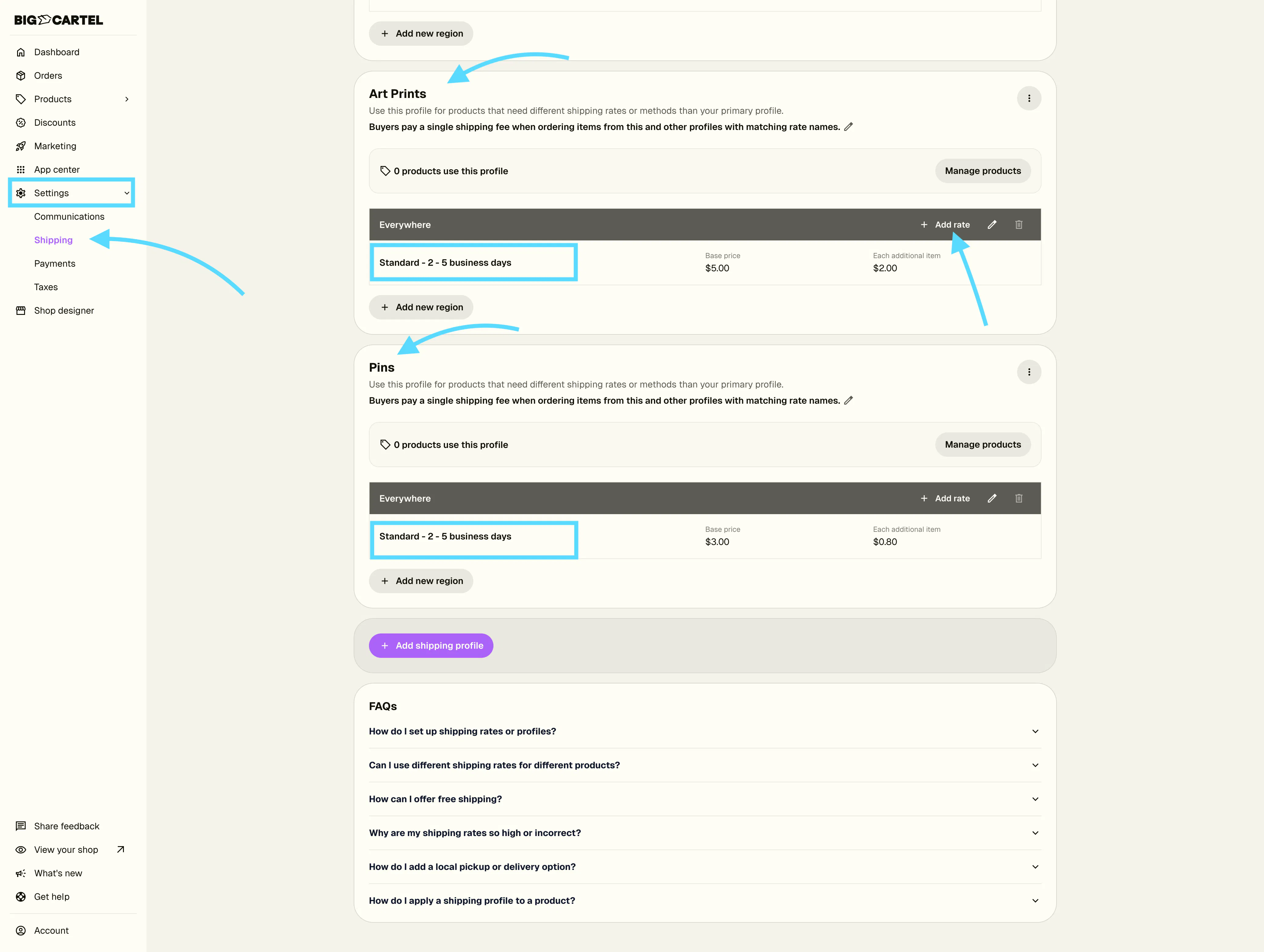
How Matching Rate Names Create One Combined Shipping Rate
For example, if a customer buys:
- A print (from your Art Prints profile) with Standard Shipping: $5 alone / $2 with others
- A pin (from your Enamel Pins profile) with Standard Shipping: $3 alone / $1 with others
They'll see one Standard Shipping option at checkout for $6 total ($5 for the print + $1 for the pin shipping with it).
When rate names and delivery info don't match, they appear as separate options.
This keeps things clear for your customers about what shipping service they're choosing. Different rate names mean different shipping options at checkout.

Make sure each product uses the correct shipping profile
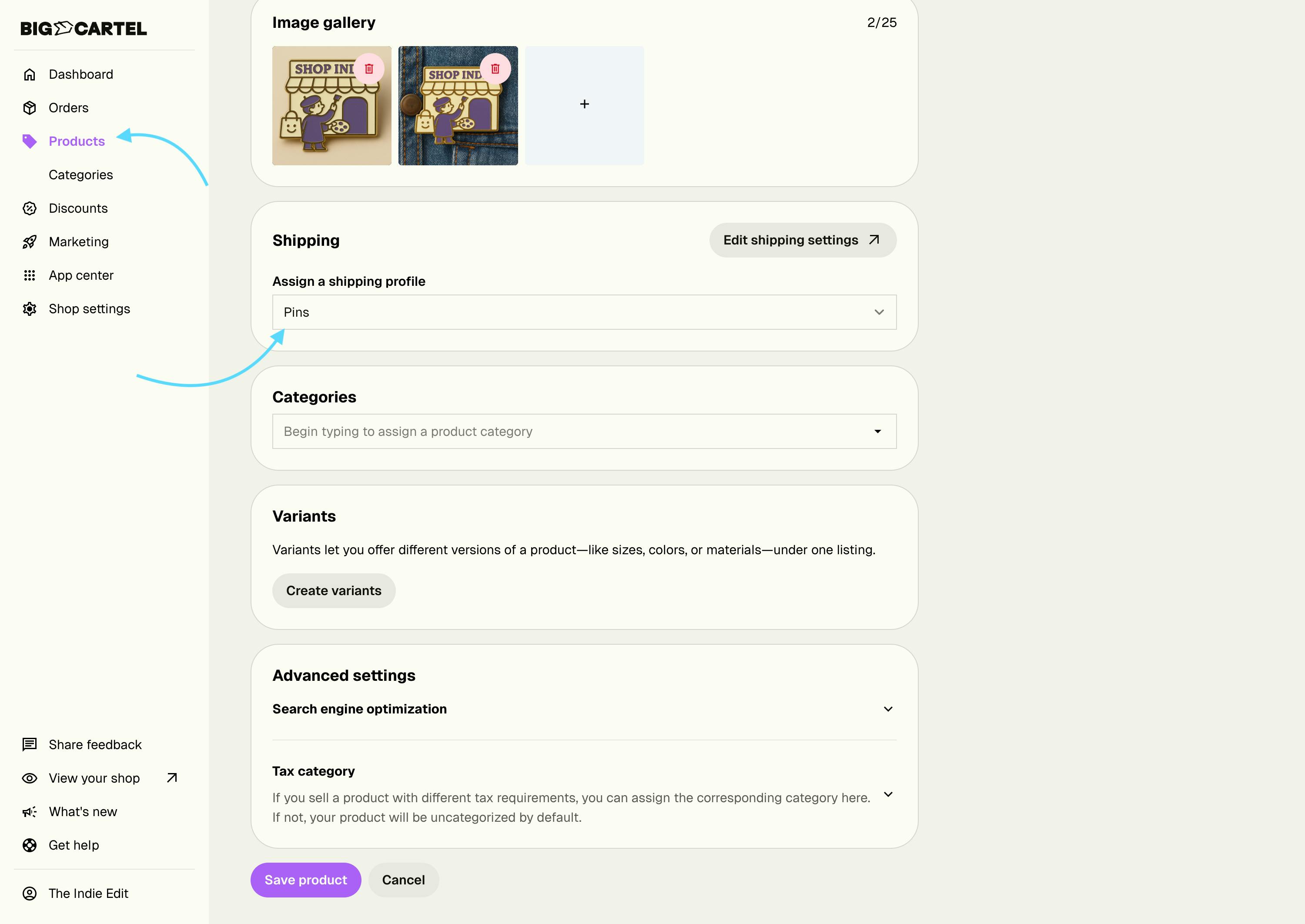
To take advantage of your lower bundled shipping rates, make sure each product is assigned to the correct shipping profile.
- Go to Products in your admin.
- Select the product you want to update.
- Scroll down to the Shipping section.
- Use the Assign a shipping profile dropdown to choose the appropriate profile.
Setting Up Shipping for Multiple Products
Important: Shipping rate names must match exactly across profiles to combine.
For example, items with Standard Shipping can bundle together, but Standard Shipping and Express Shipping will show as separate options at checkout.
To ensure shipping rates work together smoothly:
- Use consistent rate names and delivery info across your profiles Common names include: Standard, Express, Priority, International Names must match exactly, including capitalization and spacing Example: Standard and standard won't combine because of the capital S
- Price each profile appropriately Set both the ships alone and ships with other items price for each rate name Remember that the highest "ships alone" price will be used first, then ships with other items prices are added Make sure the combined total covers your actual shipping costs
- Consider your fulfillment process This works best when all items ship from the same location If different products ship from different places, you might want to use different rate names to keep them separate
Need items to ship separately?
If certain products need to ship on their own, you can create a separate shipping profile for them.
Select Add new shipping profile to create a custom profile for items that shouldn’t bundle with the rest of your products. After naming the profile, enable Items using this profile are shipped and charged separately, then add your shipping rates and assign the profile to the appropriate products.
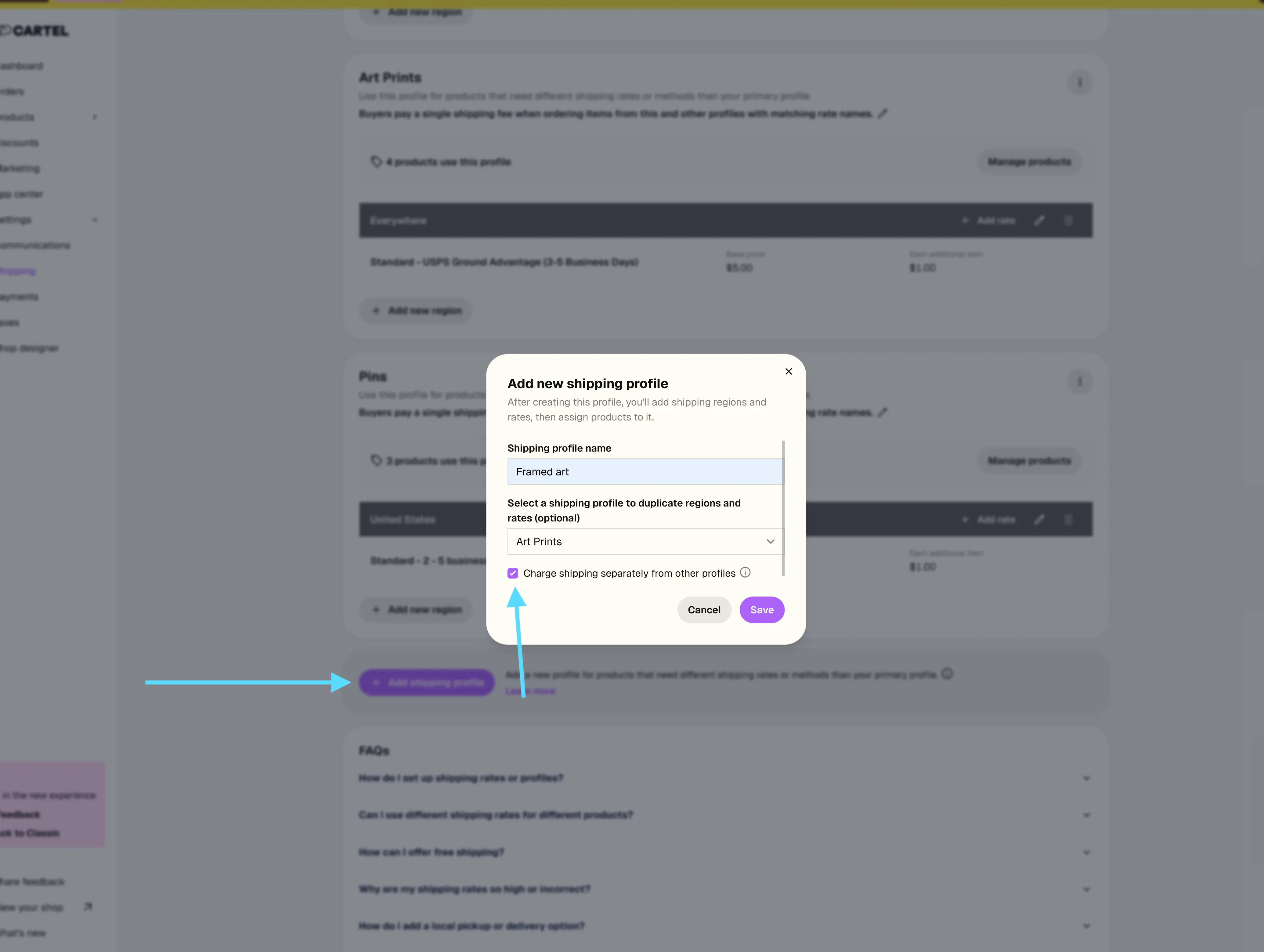
Important:
When Items using this profile are shipped and charged separately is enabled, products assigned to this profile are charged their own shipping rate and won’t be bundled with other items at checkout.
How To Set up a single shipping profile (storewide shipping)
If you want to set storewide shipping rates for all products in your shop, use your primary shipping profile.
This approach works well when you have a general shipping rate structure that can cover all orders in your store. You can add one or more shipping regions (for example, the United States, Europe, or Worldwide) and offer the same shipping methods across all products.
How it works
With a single shipping profile:
- All products in your shop use the primary shipping profile by default
- You can add multiple regions, each with its own shipping rates
- Customers see one consistent set of shipping options at checkout
Each shipping rate includes two prices:
- Price for first item in order
- Price for additional items
At checkout, shipping is calculated by:
- Applying the first item price once
- Adding the additional item price for each extra item in the cart
This allows you to create flexible storewide rates that work for both single-item and multi-item orders.
If your shipping needs change later, you can create additional shipping profiles and assign them to specific products—while keeping your storewide rates in place.
Heads up! If you’re setting up a flat-rate, set the Price for additional items to $0.00. Customers will only be charged the First item rate and nothing more.
Set up manual shipping profiles
1.Go to Settings → Shipping.
- Make sure Set rates manually is the shipping method you're using.
- Seeing a modal? You’ll select Combine shipping rates for our new bundled shipping structure or Keep rates calculated separately if you’re okay with your current setup.
Setting a store-wide shipping rate?
The Primary shipping profile applies to all products unless you assign them to another profile.
- Go to Settings → Shipping. In the Primary shipping profile, click Add new region.
- Under Destinations you ship to, select the locations this rate will cover. Use the arrows to choose specific countries or areas, then click Done.
- Under Rate 1, choose a Shipping method. Select Custom if you want to name your own method.
- Enter the Base price and Each additional item price. Both fields are required. You can also select Mark as free shipping.
- To offer another shipping method for the same destinations, click Add another rate.
- Click Save. Now you should see your Shipping rate added in your Primary shipping profile.
Want items from different shipping profiles to share one shipping fee?
Create a profile for each group of products that needs its own rates. To bundle shipping across profiles, use matching shipping method names and leave Charge shipping separately from other profiles unchecked.
- Go to Settings → Shipping and click Add shipping profile.
- Enter a Shipping profile name that describes the products, such as Shirts or Art. You can optionally select an existing profile to copy its regions and rates. Leave Charge shipping separately from other profiles unchecked, then click Save.
- In the new profile, click Add new region.
- Under Destinations you ship to, select your locations. Use the arrows to choose specific countries or areas, then click Done.
- Under Rate 1, choose a Shipping method. Use the same method name in other profiles whose items should share a shipping fee. Select Custom if you need to create your own name.
- Enter the Base price and Each additional item price.
- Click Add another rate if you want to offer another shipping method for those destinations, then click Save.
- Repeat these steps for any other product groups that need their own profiles. Make sure the rates you want to bundle have matching names across profiles.
Assign products to a profile
- In the profile, click Manage products.
- Search for and select the products that belong in it.
- Click Save.
Example Setups
Store-wide shipping rate
Let’s say you use one primary shipping profile that applies to all products in your shop.
Primary Shipping Profile (All Products):
- Standard: $6 first item / $2 additional items
- Express: $15 first item / $5 additional items
Because all products use the same shipping profile, these rates apply storewide.
When someone orders one item, they’ll see:
- Standard: $6
- Express: $15
When someone orders multiple items, shipping is calculated like this:
- The first item price is applied once
- The additional item price is added for each extra item in the cart
For example, if a customer orders three items, they’ll see:
- Standard: $10
- ($6 for the first item + $2 for each of the two additional items)
- Express: $25
- ($15 for the first item + $5 for each of the two additional items)
Because all products use the same shipping profile and rate names, checkout always shows one set of shipping options with a single combined price.
Bundled shipping
Let's say you sell apparel and accessories:
T-Shirts Profile:
- Standard: $6 alone / $3 with others
- Express: $15 alone / $8 with others
Accessories Profile:
- Standard: $4 alone / $2 with others
- Express: $10 alone / $5 with others
Sweatpants Profile:
- Standard: $8 alone / $4 with others
- Priority: $20 alone / $12 with others
When someone orders a t-shirt and an accessory, they'll see:
- Standard: $10 (t-shirt $6 alone + accessories $2 with others)
- Express: $20 (t-shirt $15 alone + accessories $5 with others)
Because the T-Shirts profile and the Accessories profile have the same rate names, their rates get combined at check out.
Bundled shipping that include items that must ship in their own package
When someone orders a t-shirt, accessory, and sweatpants, they’ll see:
Shipping for t-shirt / accessory:
- Standard: $10 (t-shirt $6 alone + accessories $2 with others)
- Express: $20 (t-shirt $15 alone + accessories $5 with others)
Shipping for sweatpants:
- Standard: $8
- Priority: $20
Notice how Priority appears as its own option since sweatpants profile has a rate that the others do not have (e.g. Prirority).
Tips for success
- Test your checkout: Add products from different profiles to your cart and check that shipping options display as you expect
- Keep it simple: Using the same 2-3 rate names across all profiles makes checkout clearer for customers
- Update as you grow: When you add new profiles, make sure the rate names align with your existing setup